Anomaly President Keyboard and Mouse Controls
Set up movement, combat, and bus menus before your first campaign day.
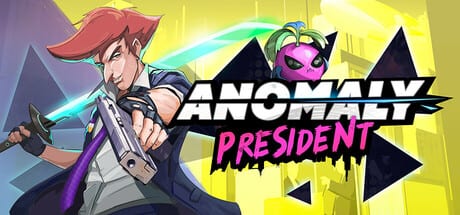
Anomaly President on Steam Early Access expects a standard PC keyboard and mouse setup. Exact key labels can change between patches, so use this page as a category guide—then open Settings → Controls in-game to read the live bindings Phew Phew Games ships today.
The dual loop splits inputs mentally: day commands focus on map movement, dialogue, and Campaign Bus management; night commands focus on side-scrolling combat, parries, kicks, and Anomaly Powers. Keeping related keys clustered reduces mistakes when the game swaps phases without a long tutorial pause.
Before you rebind anything
Launch the game once with defaults. Play through the first day node and one short night fight so you understand which actions you spam versus which you plan. Then remap only the handful of keys your hand reaches awkwardly. Aggressive rebinding before you know the rhythm often makes the combat feel more mashy, which matches common demo feedback until parry timing clicks.
Back up your choices with a screenshot. Early Access updates occasionally reset or add new actions.
Movement and camera
Side-scrolling combat uses horizontal movement plus jump or dodge depending on your unlocked kit. Typical PC layouts bind move left and move right to A and D (or arrow keys), with jump on Space or W. Some players mirror platformer habits and keep the left hand on WASD while the right hand handles mouse buttons for attack or interact.
On the campaign map, movement may shift to cursor selection rather than platformer physics. Confirm map pan or zoom keys in options if tooltips hide off-screen.
Attack and light combo
Primary melee usually sits on Left Mouse Button or a nearby key such as J or Left Ctrl in action games from the same mold. Anomaly President favors short strings over long Bayonetta-style chains. Tap for quick safety hits; hold only when you know the enemy telegraph is finished.
If you double-trigger attacks during bus menu transitions, release all buttons when the day-night wipe plays.
Parry
Parry is the skill that separates smooth runs from mashy ones. Defaults often place parry on Right Mouse Button, Shift, or Q—far enough from attack that you do not accidental parry when panicking, close enough to reach without lifting your whole hand.
Rebind parry to a key your ring finger or thumb can hit while holding movement. Many players use Shift or a mouse side button. After rebinding, run one night encounter focusing only on parry: no Anomaly, no kicks, just learn the flash cue.
See Combat Inputs for frame-feel notes and enemy-specific tells.
Kick and environment interact
Kick commands let the president launch props—barrels, crates, loose debris—into enemies. The kick input is frequently E, F, or Middle Mouse Button, separate from generic interact so you do not kick when you meant to talk to an NPC during day segments.
Environmental objects glow or shake when kickable. Approach, face the object, then tap kick once; chained kicks may appear in later upgrades. If kicks whiff, check orientation: side-scrollers punish facing the wrong direction more than 3D brawlers.
Anomaly Powers
Anomaly Powers are run-defining specials tied to the roguelike layer. They usually occupy Q, R, or number keys 1–4 once unlocked on the Campaign Bus or through night rewards. Treat them like cooldown abilities: press once, confirm the animation started, then return to parry-ready stance.
Do not bind Anomaly on the same finger as parry unless you are disciplined about release timing. A common layout keeps parry on Shift, Anomaly on Q, and primary attack on mouse one.
Interact, confirm, and cancel
Generic interact—talk, loot, pick up campaign tokens—maps to E or F on many PC builds. Confirm in dialogue and shop menus often shares Enter, Space, or Left Click. Cancel or back is Esc, Backspace, or Right Click.
When Fluffies offer recruitment prompts, read tooltips before confirming to avoid skipping dialogue or bonus resources.
Campaign Bus UI
The Campaign Bus is your mobile upgrade hub between map nodes. Navigation inside bus menus typically uses WASD or arrow keys to highlight panels, Enter or Left Click to purchase, and Esc to exit back to the map. Submenus for Fluffy assignments, Anomaly slots, and route modifiers may use tab keys or shoulder-style Q/E tabbing on PC.
Spend a day cycle opening every bus panel once. Learn which panels are informational versus transactional before timed events pressure your route.
Mouse-specific tips
Mouse aim matters less than in shooters, but cursor precision helps on the day map. For combat, many players use mouse buttons only for attack and parry.
Suggested starter layout (example only)
| Action | Typical PC slot | Notes |
|---|---|---|
| Move | A / D | Add jump on Space if unlocked |
| Attack | Left Mouse | Short taps; avoid holding |
| Parry | Shift or Right Mouse | Rebind early if defaults feel far |
| Kick | E or Middle Mouse | Separate from interact if possible |
| Anomaly | Q / R | Keep off parry finger |
| Interact | F | Verify on day nodes vs night props |
| Bus menu | Arrows + Enter | Practice before timed routes |
| Pause | Esc | Also cancels nested menus |
Replace this table with your in-game readout after each patch.
Return to Controls Hub for hub-wide FAQs, then cross-link to Combat Inputs when you are ready to drill night fights.
Frequently Asked Questions
Quick answers to the most common questions.
Are the keybinds in this guide guaranteed accurate?
No. Early Access builds change. This page documents standard PC action-game categories; always verify live bindings under Settings → Controls.
What should I rebind first?
Parry and kick. Comfortable defensive and environment inputs improve runs more than moving attack off mouse one.
Do bus menus use the same keys as combat?
Often partially. Movement keys may highlight panels while confirm and back mirror general UI. Test bus navigation on a safe day before hard routes.